At Njevity, we take your security seriously. That’s why we’ve streamlined the process for setting up Multi-Factor Authentication (MFA) with Microsoft Authenticator. With PowerGP Online, securing your login with MFA is a critical step in protecting your business data.

This quick setup guide will walk you through the exact steps to enable MFA, ensuring your Dynamics GP environment stays protected from unauthorized access. No guesswork. No confusion. Just fast, secure access.

Ready to get started? Let’s get your account protected.

*Click each step to expand for detailed instructions

1. Sign In at Office.com

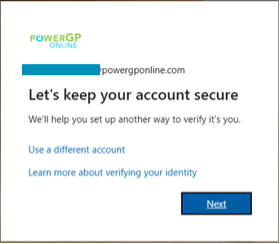
Go to office.com and sign in using your PowerGP Online account credentials.

You’ll see a prompt to begin MFA setup.
Click Next.

Multi-Factor Authentication (MFA) using the Microsoft Authenticator
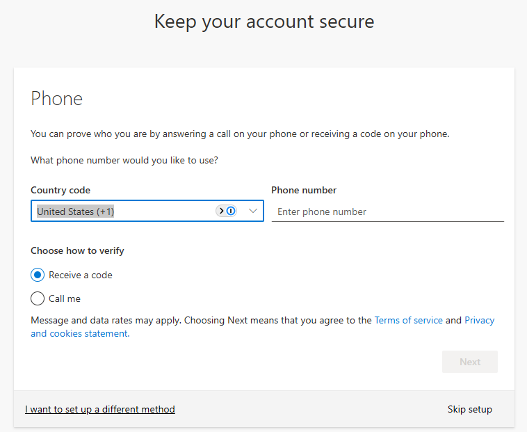
  • You’ll be asked to enter a phone number. Choose to receive a text message (preferred) or a phone call for verification.

  • Enter the verification code sent to your phone, then click Next.
Multi-Factor Authentication (MFA) using the Microsoft Authenticator

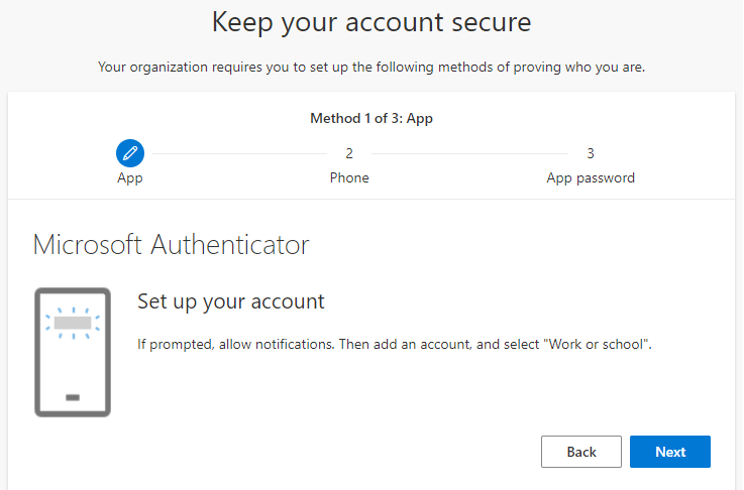
You’ll be prompted to set up the Microsoft Authenticator app.
Click Next to continue.

Multi-Factor Authentication (MFA) using the Microsoft Authenticator
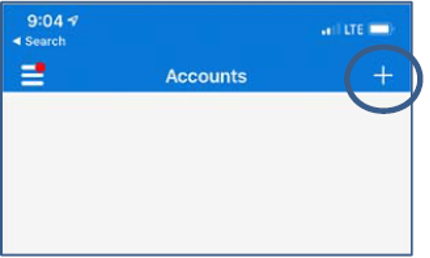
  • If you don’t already have the app, download Microsoft Authenticator from the App Store (iOS) or Google Play (Android).

  • Open the app. If not automatically prompted to add an account, tap the “+” in the top right corner.

Multi-Factor Authentication (MFA) using the Microsoft Authenticator

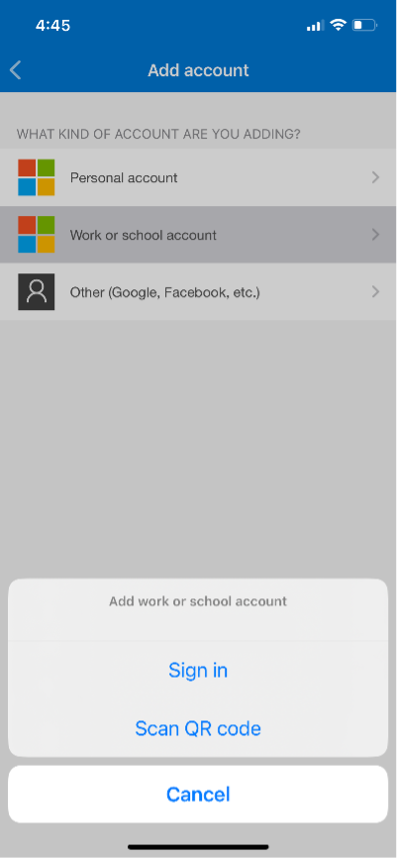
Select Work or school account.

Multi-Factor Authentication (MFA) using the Microsoft Authenticator

Choose Scan QR code.

Multi-Factor Authentication (MFA) using the Microsoft Authenticator

Your phone will switch to camera mode.

Multi-Factor Authentication (MFA) using the Microsoft Authenticator

Back on computer screen click Next when prompted to display the QR code.

Multi-Factor Authentication (MFA) using the Microsoft Authenticator
  • Hold phone up to QR code to scan it with the camera.

  • Once the account is added, click Next on your computer.
Multi-Factor Authentication (MFA) using the Microsoft Authenticator
  • A 2-digit code will appear on your computer screen.

  • Enter this code into the prompt on your phone.
Multi-Factor Authentication (MFA) using the Microsoft Authenticator
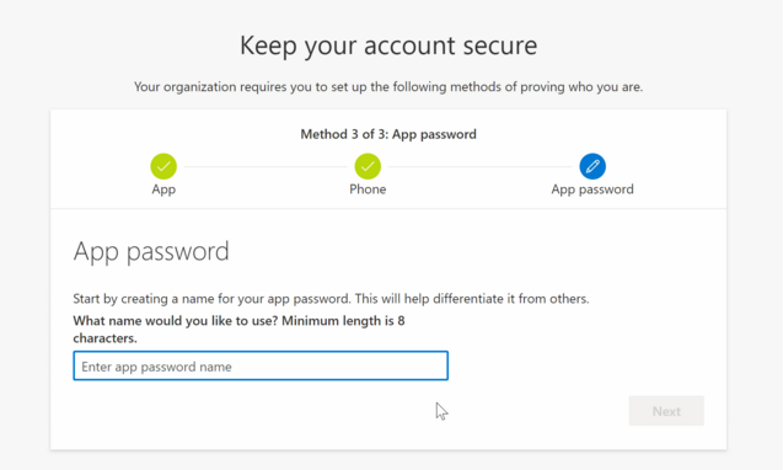
  • If prompted to name an “app password,” you can simply enter Password.

  • This field is required by Microsoft but will not be used for MFA. Click Next.
Multi-Factor Authentication (MFA) using the Microsoft Authenticator

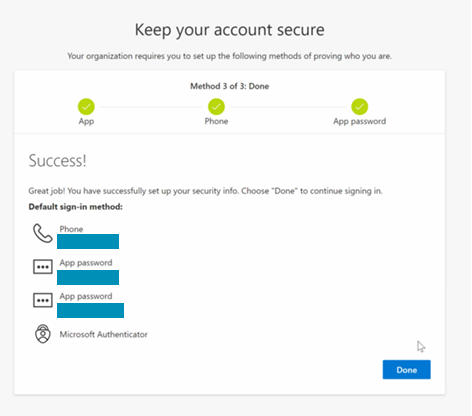
Click Done to finish.
You’re now set up with Multi-Factor Authentication!

Multi-Factor Authentication (MFA) using the Microsoft Authenticator